 Smart Import
Bring your draft in with its chapters intact
Smart Import is for writers who arrive with a draft. It brings in a manuscript from Word, EPUB, Markdown, plain text or PDF, finds the chapters for you, and shows them to check before anything is added.
- $45 once, no subscription
- Windows and macOS
- Phone app included
- Works offline
 Windows
 macOS
macOS
 Mobile
Part of the 25 minute walkthrough. Watch the full tour from the start Watch on YouTube
Bring in the draft you already have
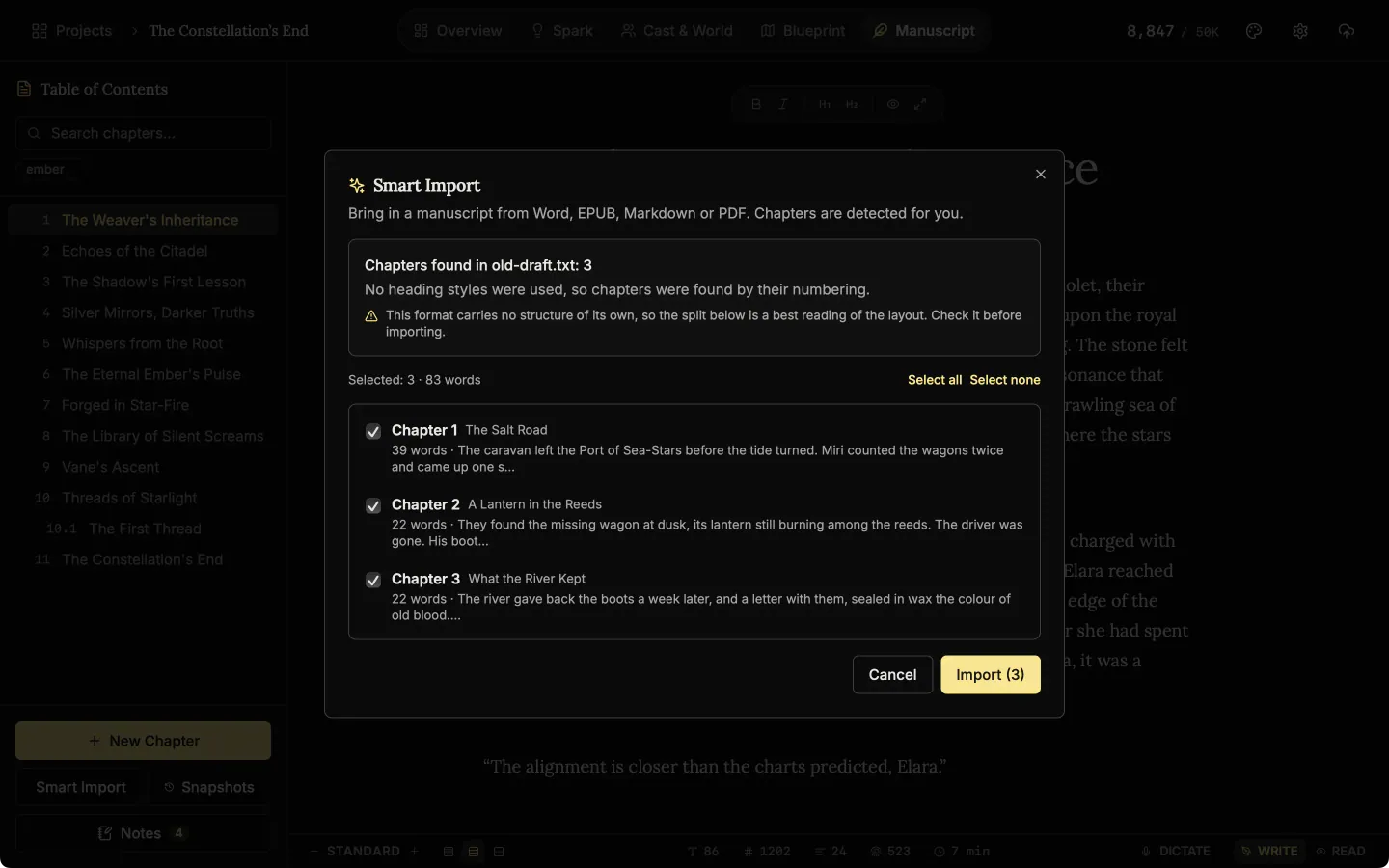
Smart Import finds the chapter breaks in your file and lists the chapters with their word counts. Untick any you do not want, then import. Nothing is added until you say so.
Detected chapters
Smart Import finds the chapters in the file and shows them before anything is added to your book.
Import from Word, EPUB, Markdown, plain text or PDF
Word (.docx) from Microsoft Word, Google Docs, Pages or LibreOffice. EPUB, Markdown and plain text. PDF too, if it has a text layer. A scanned PDF cannot be read.
Smart Import
Bring in a manuscript you already wrote, from Word, EPUB, PDF, Markdown or plain text.
Your existing chapters stay as they are
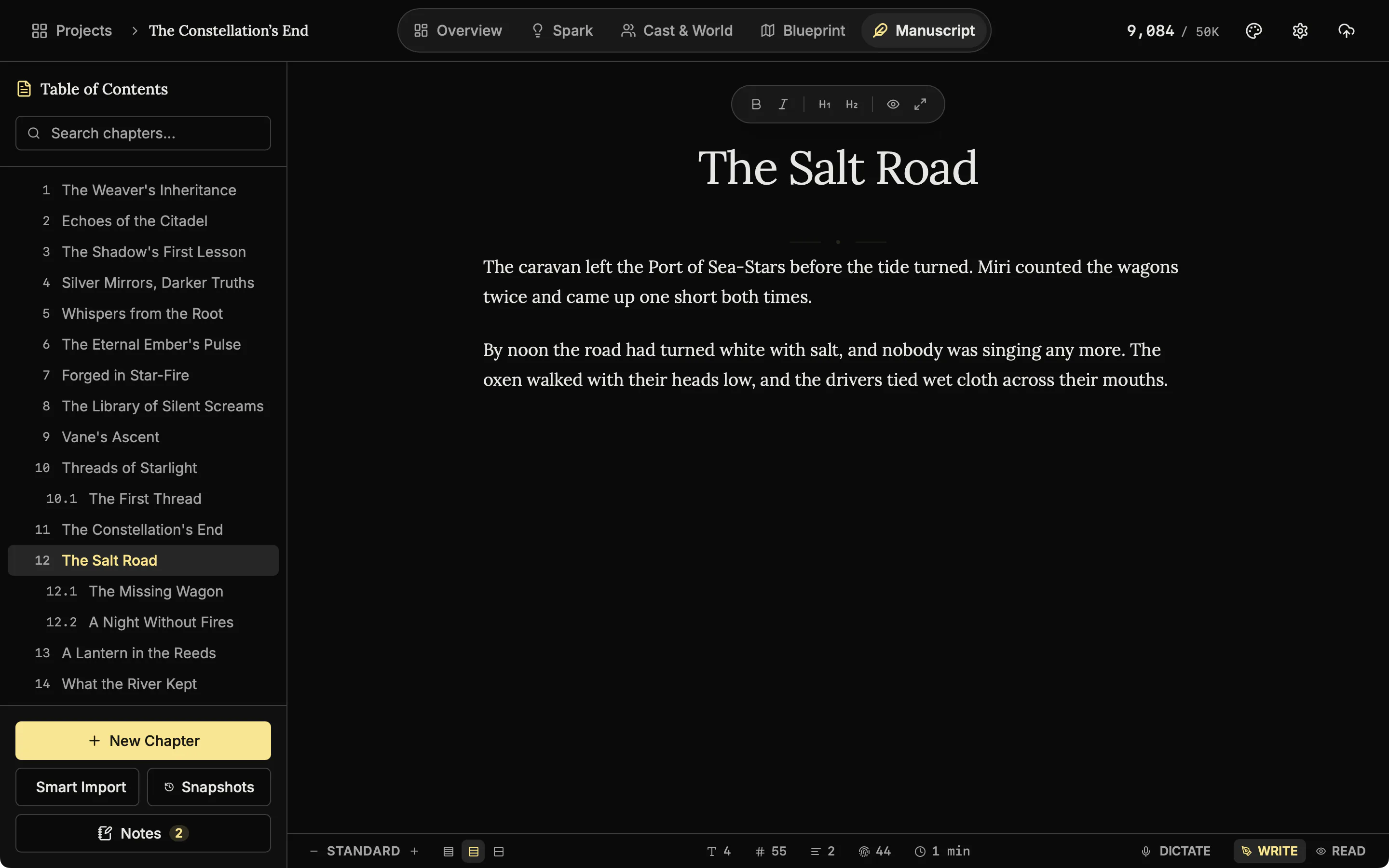
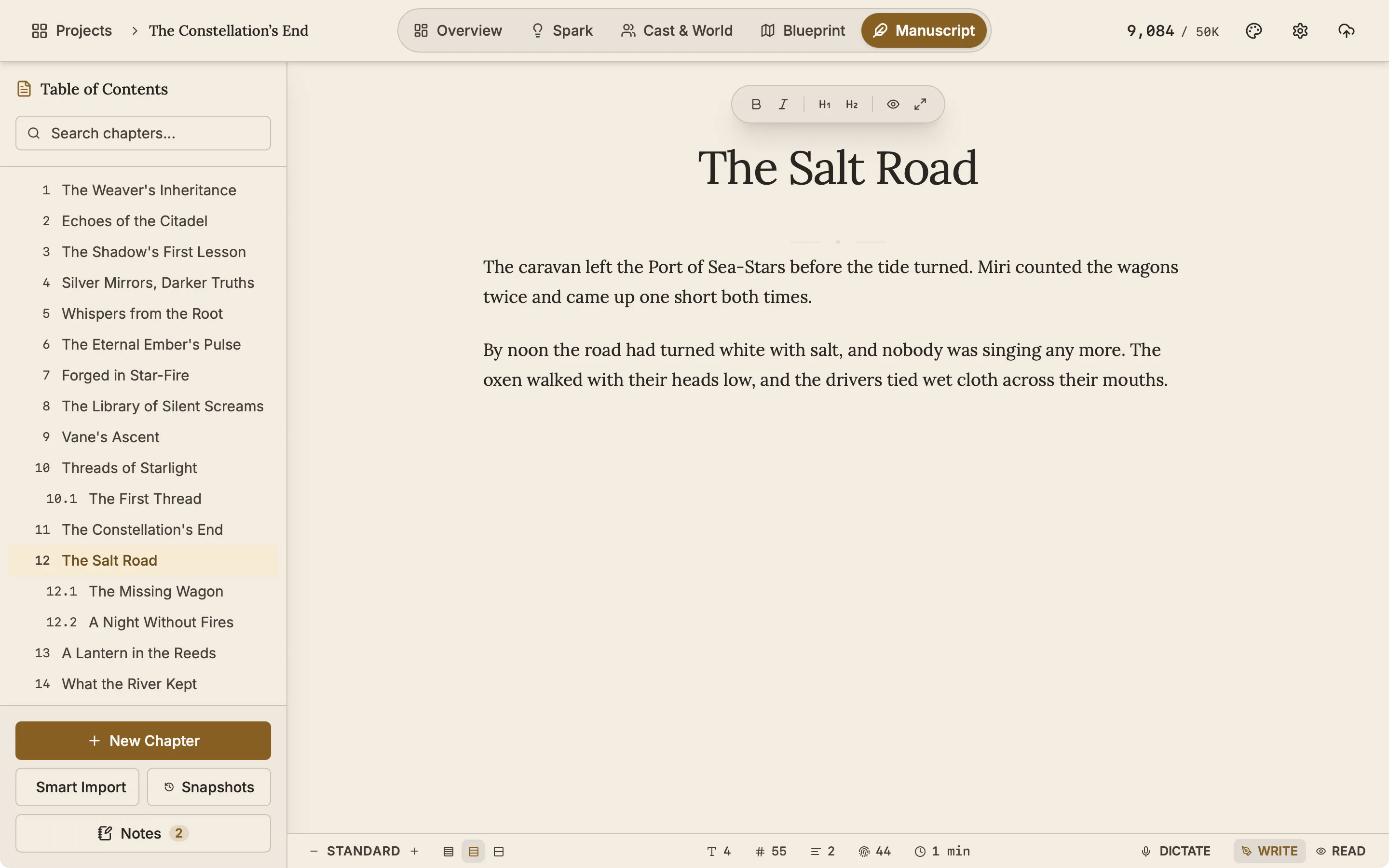
Imported chapters are added at the end of the book. The chapters you already have are not changed.
Good to know
- Imported words do not count toward your daily goal. Your daily goal counts the words you write. Anything over 500 words inserted at once stays out of your daily goal and streak.
- Read on your device. The file is opened on your own computer or phone. Nothing is uploaded.
- Project files are different. A .novelos file is a whole NovelOS project. Use Import Project on the shelf for those.
Related features
- The manuscript editor
Write the book in chapters and sub-chapters, with Zen, Typewriter and Vanishing modes and search that forgives typos.
- Scenes and the timeline
Plan each scene, link it to its chapter, and read the whole story in order on a timeline arranged by chapter.
- Goals and progress
Set a word target and a deadline, see the daily pace that gets you there, and keep a record of every writing day.
- Publish and export
Export to Word, EPUB, PDF, HTML, Markdown, RTF and plain text. The PDF follows your trim size, margins and font.
- The phone app
The same studio on iOS and Android with the same licence, and one file that moves a project between devices.
Common questions
Which file types can I import?
Word (.docx), EPUB, Markdown, plain text and PDF.
Can I import from Scrivener, Google Docs or Pages?
Yes. Export or download the manuscript as Word (.docx) from that app, then open the file with Smart Import.
Can it read a scanned PDF?
No. A PDF needs a text layer. A scan is a picture of the pages.
Will it overwrite what I have already written?
No. Imported chapters are added at the end of the book.
Is my manuscript uploaded to be converted?
No. The file is read on your own device.
Is it included in the $45?
Yes, on Windows, macOS and the phone app.
Guides for drafting
Exposition in Motion: Give Readers the Right Fact at the Right Moment
Place exposition where readers need it by testing what each fact helps them follow, judge, or reinterpret in the current scene.
Read article
Book Blurb vs Synopsis: Build Promise and Proof
Compare a book blurb with a synopsis, then use a promise-to-payoff ledger to write reader-facing copy and a spoiler-complete submission document.
Read article
A Clarity Test for Every Dialogue Tag
Test dialogue tags by speaker clarity, reset points, placement, action, and rhythm so readers never need to reconstruct who spoke.
Read articleWriting Tips & First Edition Access.
Craft guides and product updates in your inbox.
Finish your story. Keep your tools.
One payment and it is yours. No subscription, no account, no telemetry. Watch the full walkthrough before you buy.