 Scenes and the Timeline
Plan each scene, then read the story in order
Scenes and the Timeline are the plan of your novel. Plan each scene with its status, viewpoint and cast, link it to its chapter, and read the whole story in order on a timeline.
- $45 once, no subscription
- Windows and macOS
- Phone app included
- Works offline
 Windows
 macOS
macOS
 Mobile
Part of the 25 minute walkthrough. Watch the full tour from the start Watch on YouTube
Plan a scene before you write it
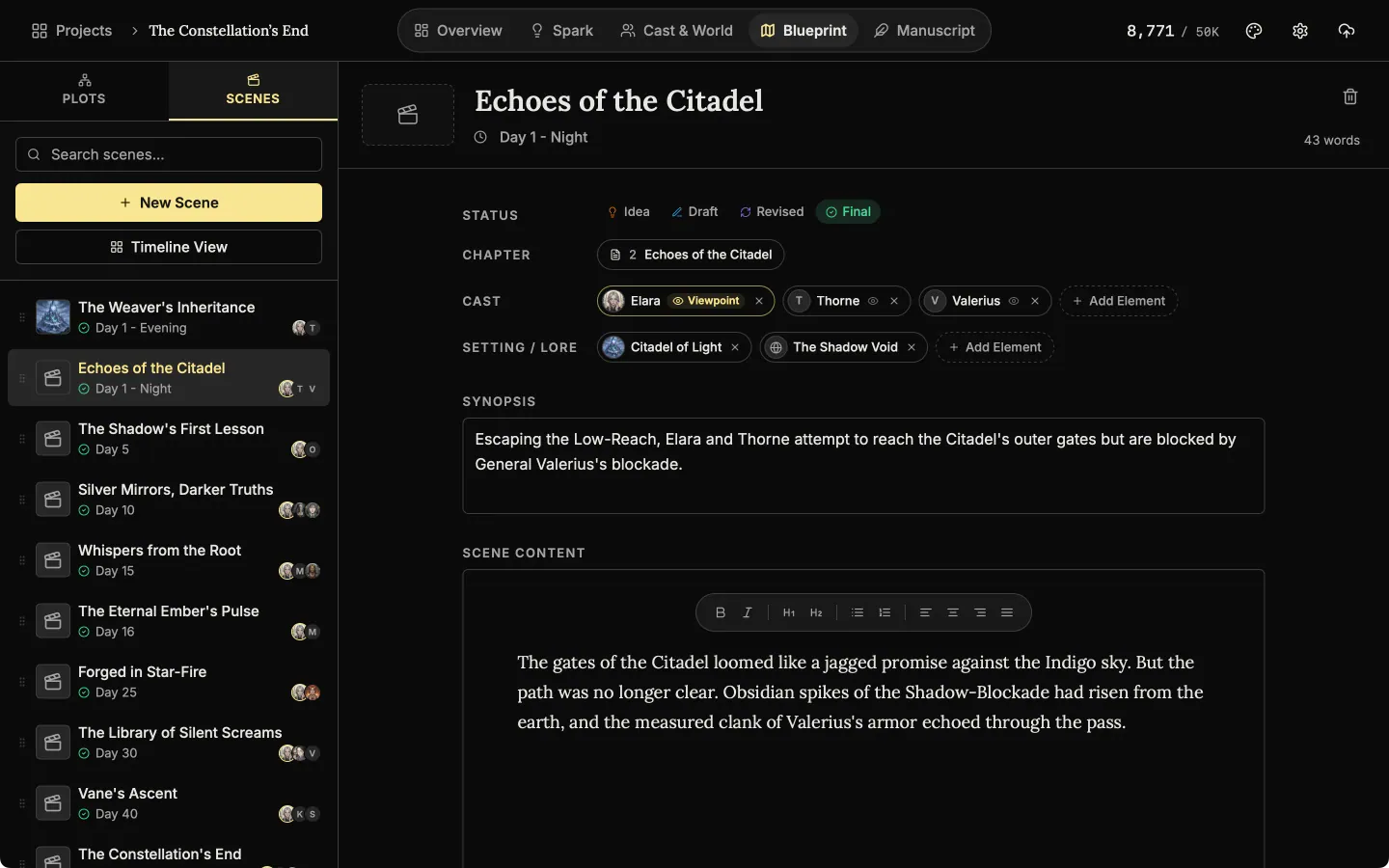
Give a scene a title, a time and a one-line synopsis. Write the scene itself there too, or leave that for the manuscript.
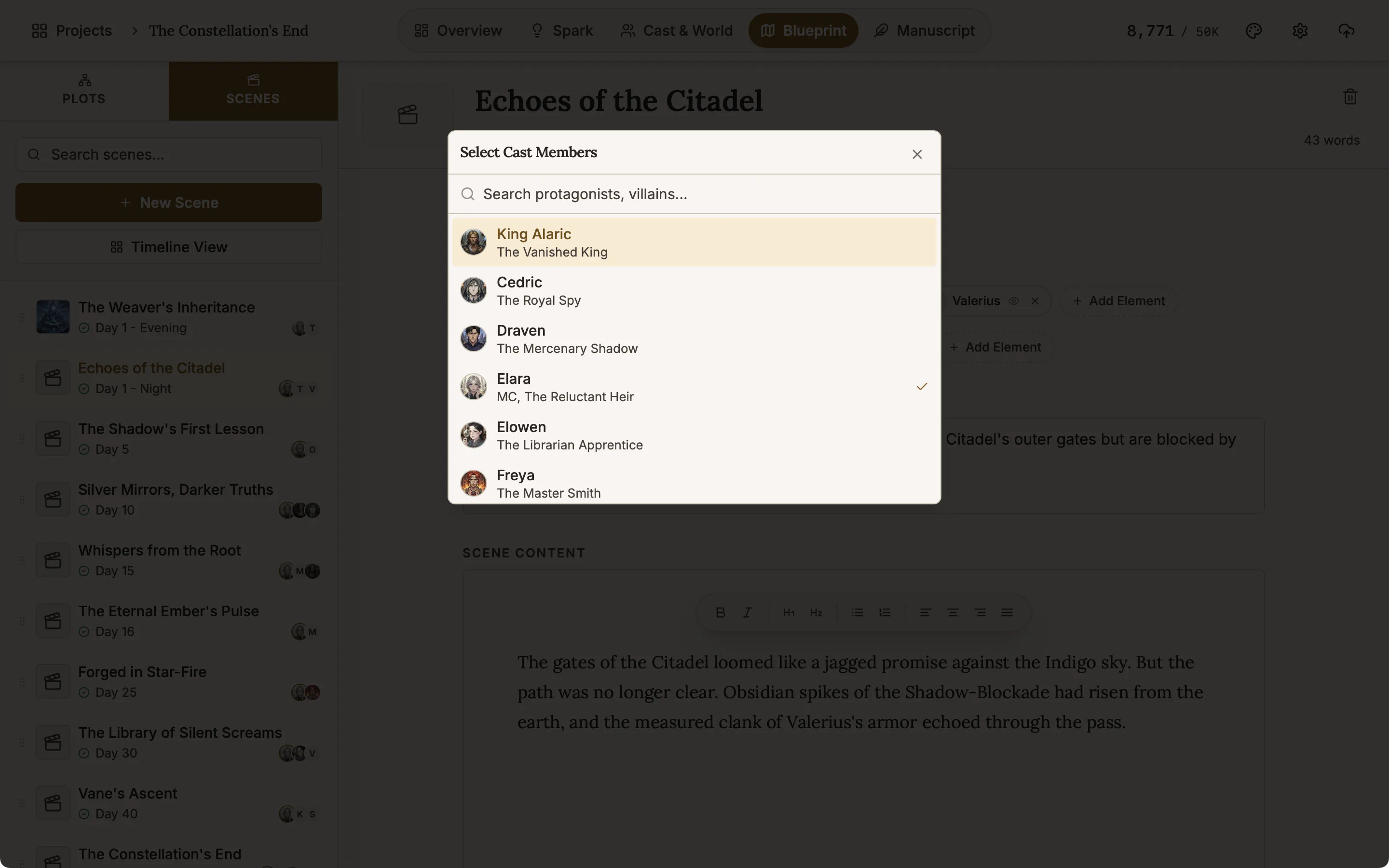
Scene editor
A scene holds its status, its chapter, who is in it and whose viewpoint it is, where it happens, a picture, a synopsis and the text.
Link a scene to its chapter New
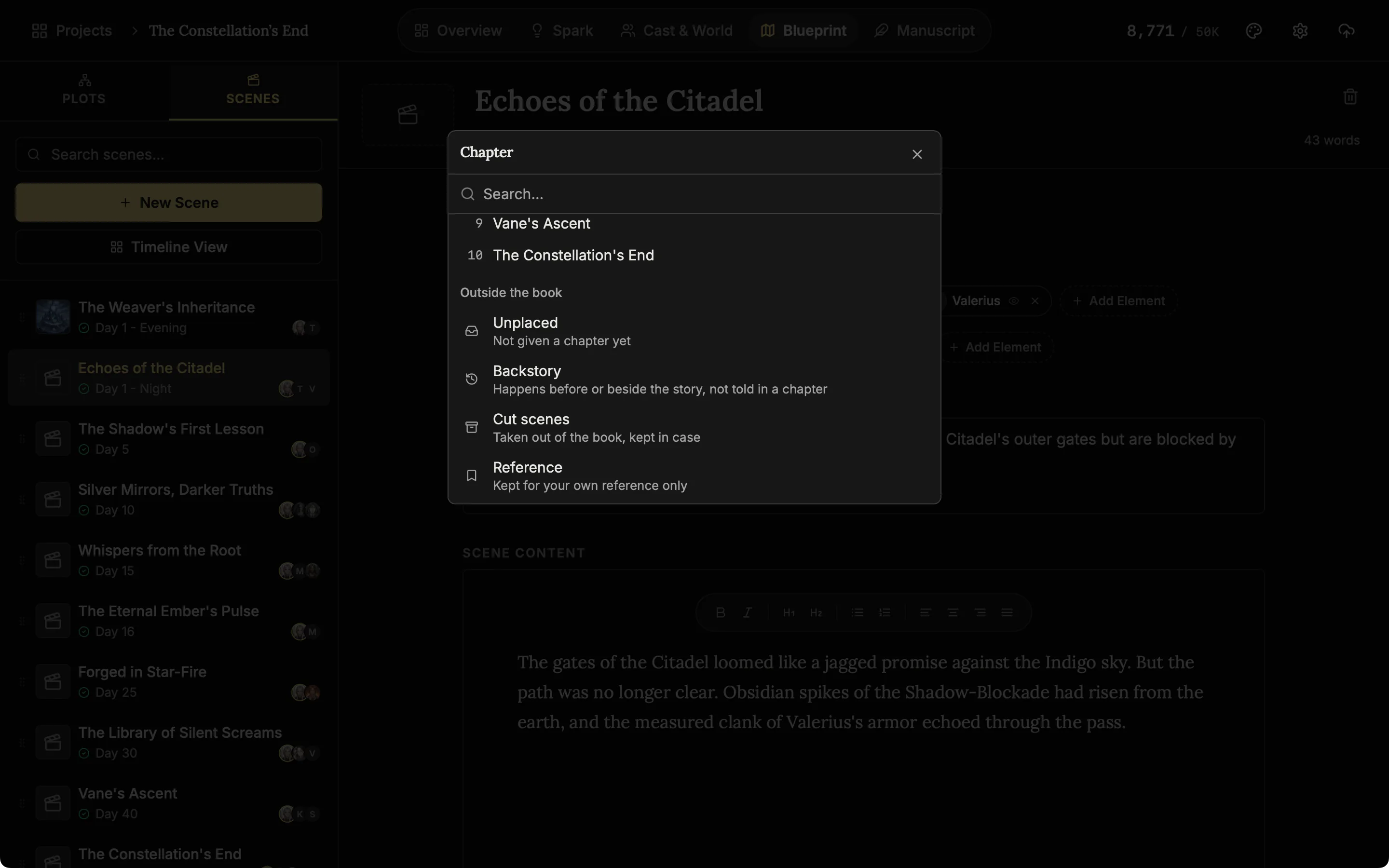
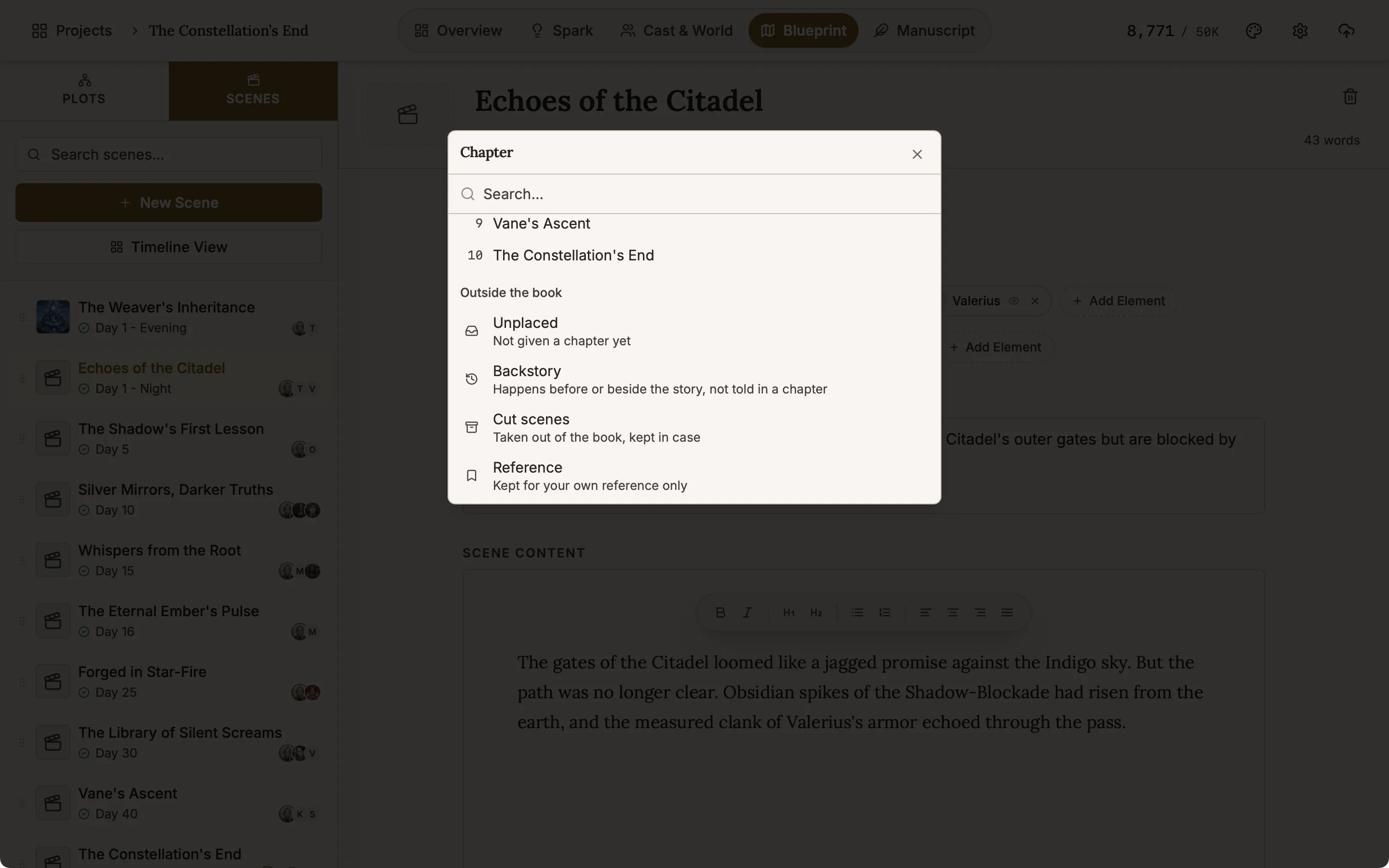
Give each scene the chapter it is written in, so your plan and your book stay in step. Several scenes can share one chapter. A scene that is not in the book can be kept as Backstory, Cut scenes or Reference.
Track each scene's status and viewpoint character New
Mark a scene Idea, Draft, Revised or Final. Click the eye on a character to make them the viewpoint. Add a picture and it shows in the scene list.
Chapter, cast and viewpoint
Link a scene to its chapter, add who is in it, and mark whose eyes we see it through.
Add the characters and the place to each scene
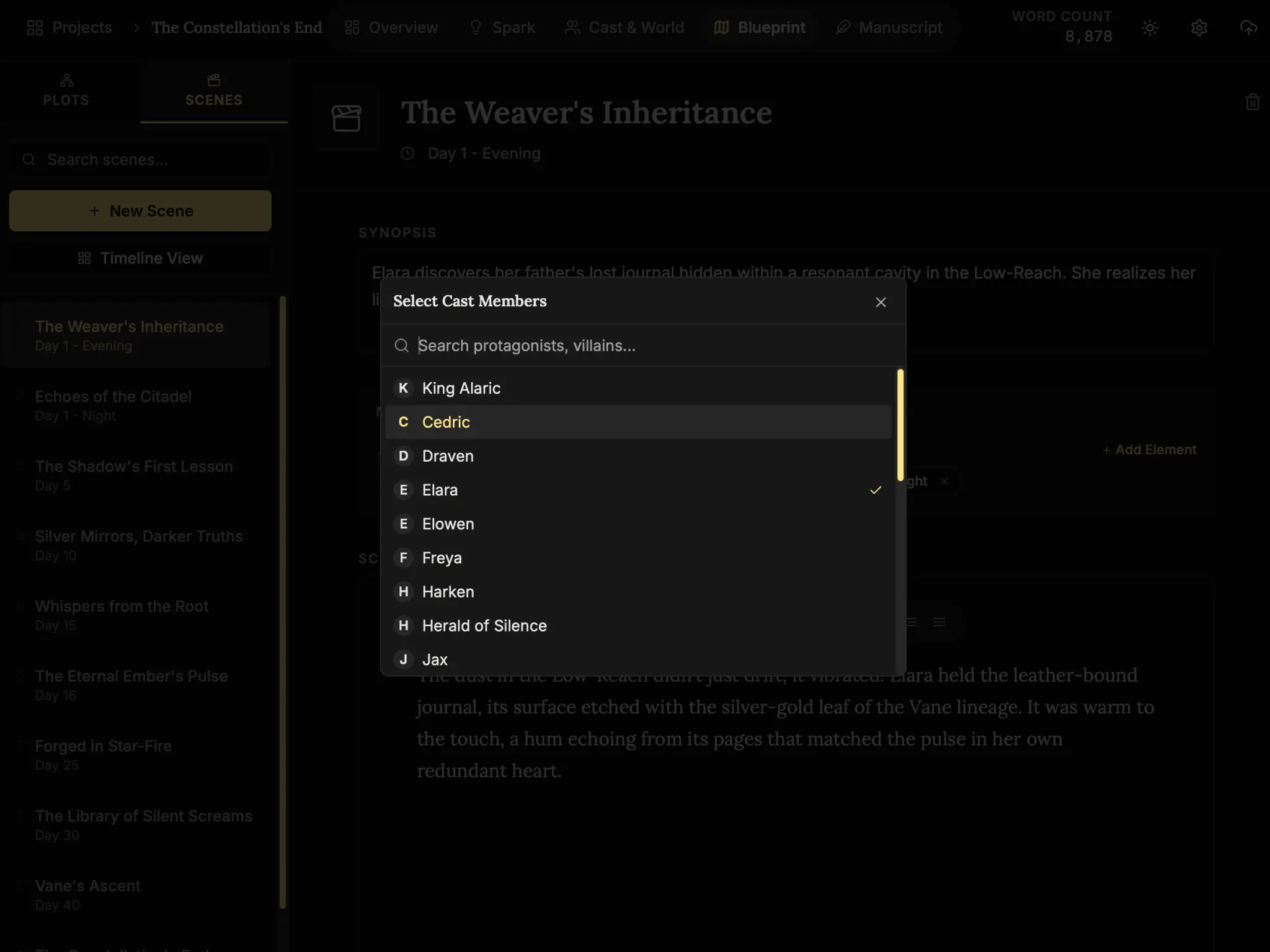
Pick the cast, the place and the lore from what you already made. The scene is then listed on the page of each character, place and lore entry in it.
A timeline of the whole story, chapter by chapter
Every chapter gets a row, and each scene sits in its chapter. Drag a scene to another row to move it, or sideways to change when it happens.
The story, chapter by chapter
The timeline lays every scene out along the days of the story, one row per chapter.
Also here
- Search scenes. Looks in titles and synopses.
- Reorder the list. Drag a scene by its handle.
- Scenes on plot boards. Drag a scene onto a plot board to add it as a card.
- Blueprint, the plot board
Lay the plot out as cards for scenes, plot points, characters and places, and link them with labelled lines.
- The manuscript editor
Write the book in chapters and sub-chapters, with Zen, Typewriter and Vanishing modes and search that forgives typos.
- Characters and family trees
A page for every character, family trees built from your cast, and optional AI concepts from The Oracle.
- Places and lore
Every setting, item and rule of your world as a record you can search, illustrate and link to its scenes.
Common questions
What is the difference between a scene and a chapter?
A chapter is what the reader sees. A scene is a unit of your plan: what happens, when, to whom and where. Each scene is linked to the chapter it is written in.
Can I keep scenes that are not in the book?
Yes. Keep them as Unplaced, Backstory, Cut scenes or Reference. They sit under Outside the book on the timeline.
How do I move a scene to another chapter?
Drag it to another row on the timeline, or change the chapter in the scene editor. On the phone, hold a scene to drag it, or use Move to.
Does the timeline show plot points too?
No. The timeline shows scenes only. Plot points live on the plot boards.
Do I need AI for any of this?
No. Scenes and the timeline use no AI and work offline.
Is it included in the $45?
Yes, on Windows, macOS and the phone app.
Craft guides for structure
Status Can Shift With Every Dance in a Ballroom Scene
Turn a fictional ball into social conflict through invitations, introductions, scheduled dances, room access, public interpretation, and a costly result.
Read article
A Shipwreck Creates a New Social Order Before the Rescue
Write a shipwreck scene through vessel routines, response debt, bounded information, evacuation choices, resource triage, and authority that changes ashore.
Read article
A Council Scene Must Produce an Authorized Decision
Write a council meeting scene through jurisdiction, agenda wording, evidence, amendments, public pressure, a valid decision, and visible implementation.
Read articleWriting Tips & First Edition Access.
Craft guides and product updates in your inbox.
Finish your story. Keep your tools.
One payment and it is yours. No subscription, no account, no telemetry. Watch the full walkthrough before you buy.